
1. Open Internet Explorer Browser (Only Works With IE) in taskbar, or click on the "REMOTE FROM HOME" icon on your computer (if made)
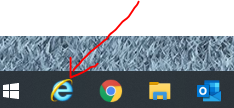
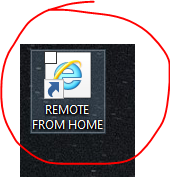
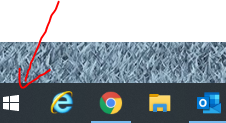
2. If you do not have the icon there, click on the Windows button on taskbar.
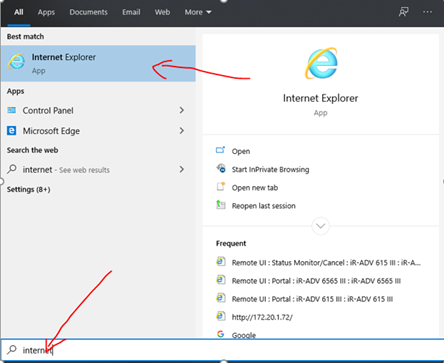
3. Start typing in “Internet Explorer” and you should see the icon appear in the search, and click it.
4. Click into the URL (web address) box at the top of the page.
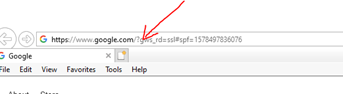
5. Type in the following address: https://jcmcpa.net/rdweb and hit ENTER
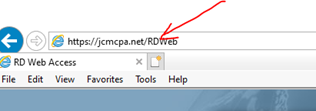
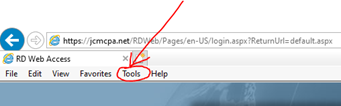
6. On the top of the window please select “Tools” from the menu bar.
7. Select “Compatibility View Settings” from the menu
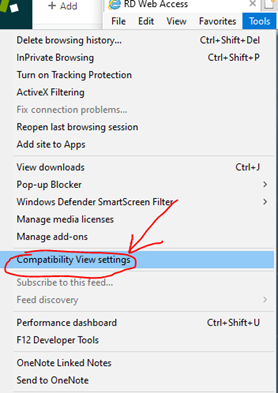
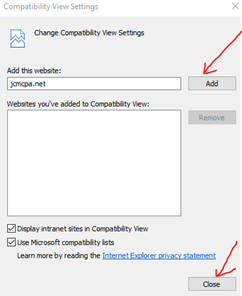
8. Click “Add” button on the right side, and then Close
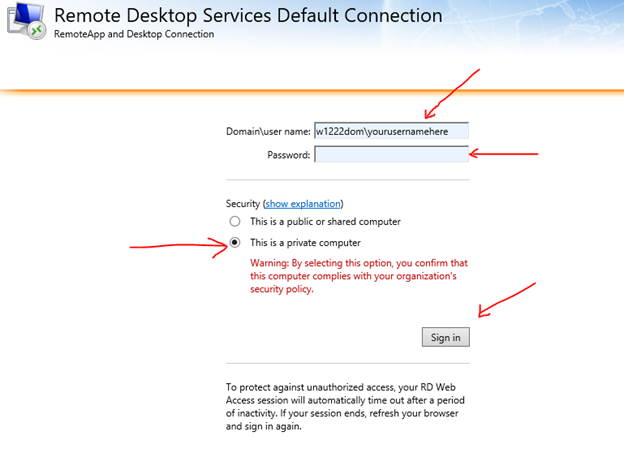
9. On the main page please enter the Domain name (w1222dom) and your username as follows, along with your password, and then click “This is a private computer” and Click “Sign In”
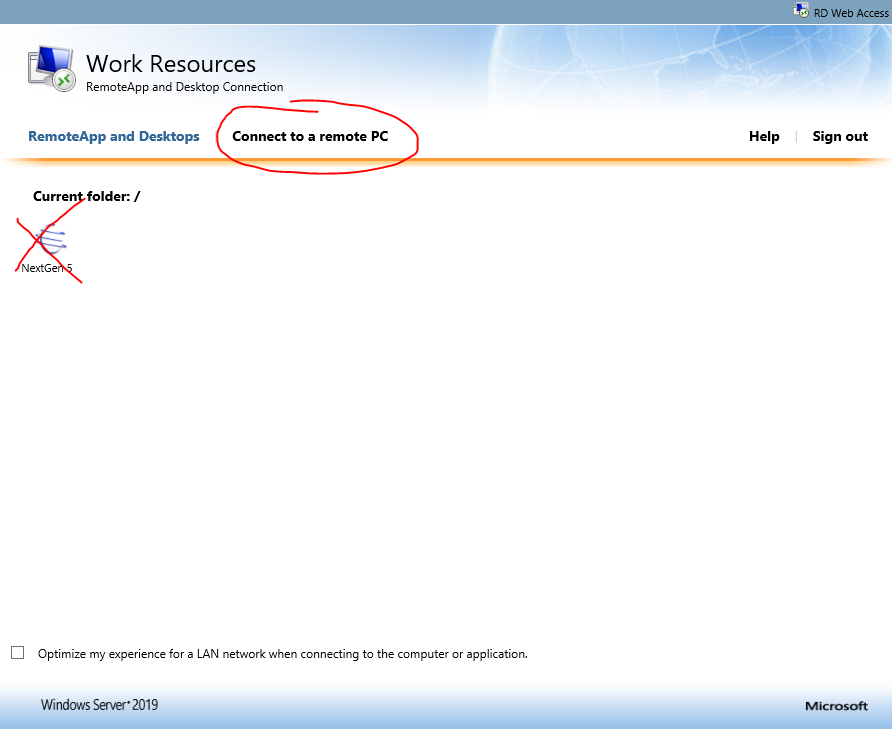
10. Please click on the "Remote Desktop" tab or "Connect to a remote PC" tab ****DO NOT CLICK ON NEXTGEN5 ICON HERE******
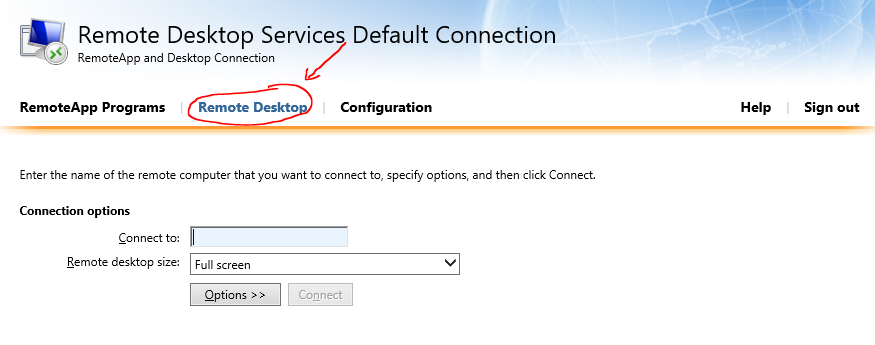
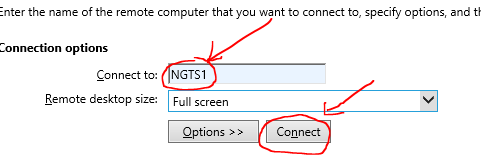
11. Please Enter the NGTS That you use in the "Connect to:" section: NGTS1 NGTS2 NGTS3 NGTS4 NGTS5 or NGTS6 and click CONNECT after.
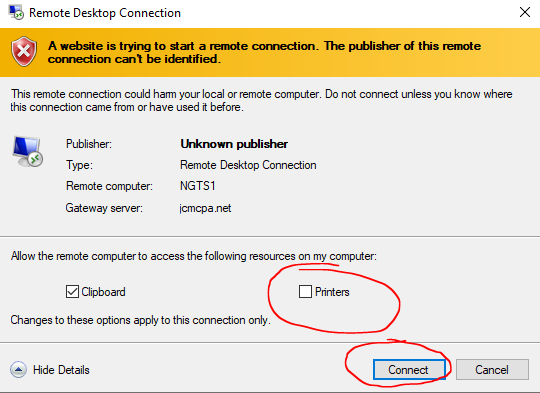
12. Make sure you UNCLICK printers and then hit CONNECT
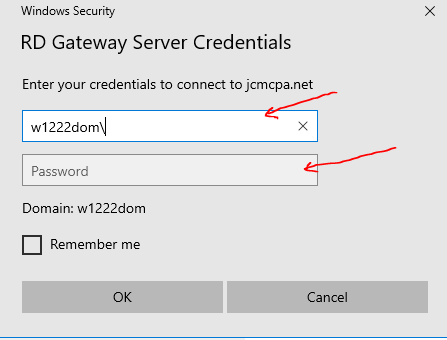
13. On this screen make sure you type w1222dom\yourusername and password
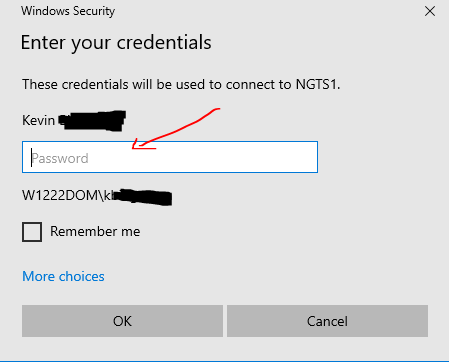
14. This screen will appear where you just type your password once again
15. If this screen comes up, please CLICK box for "Don't as me again" and click YES after
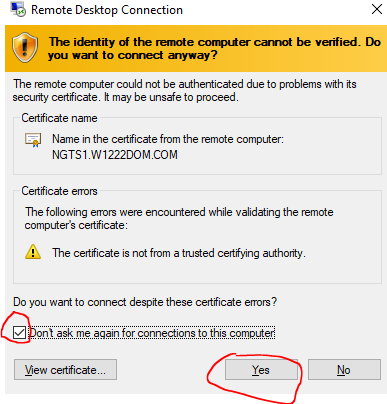
16. You should now be in the terminal server desktop, and you can continue working as normal.
17. Double Click on the Nextgen 5 icon on the server and proceed to log into Nextgen.
Comments
0 comments
Please sign in to leave a comment.